Features · User flows
Map user flows from real app screenshots
Turn scattered app screenshots into ordered, clickable user flows. Document onboarding, checkout, and upgrade journeys from real interfaces, yours or a competitor's, and keep every step reviewable by the whole team.
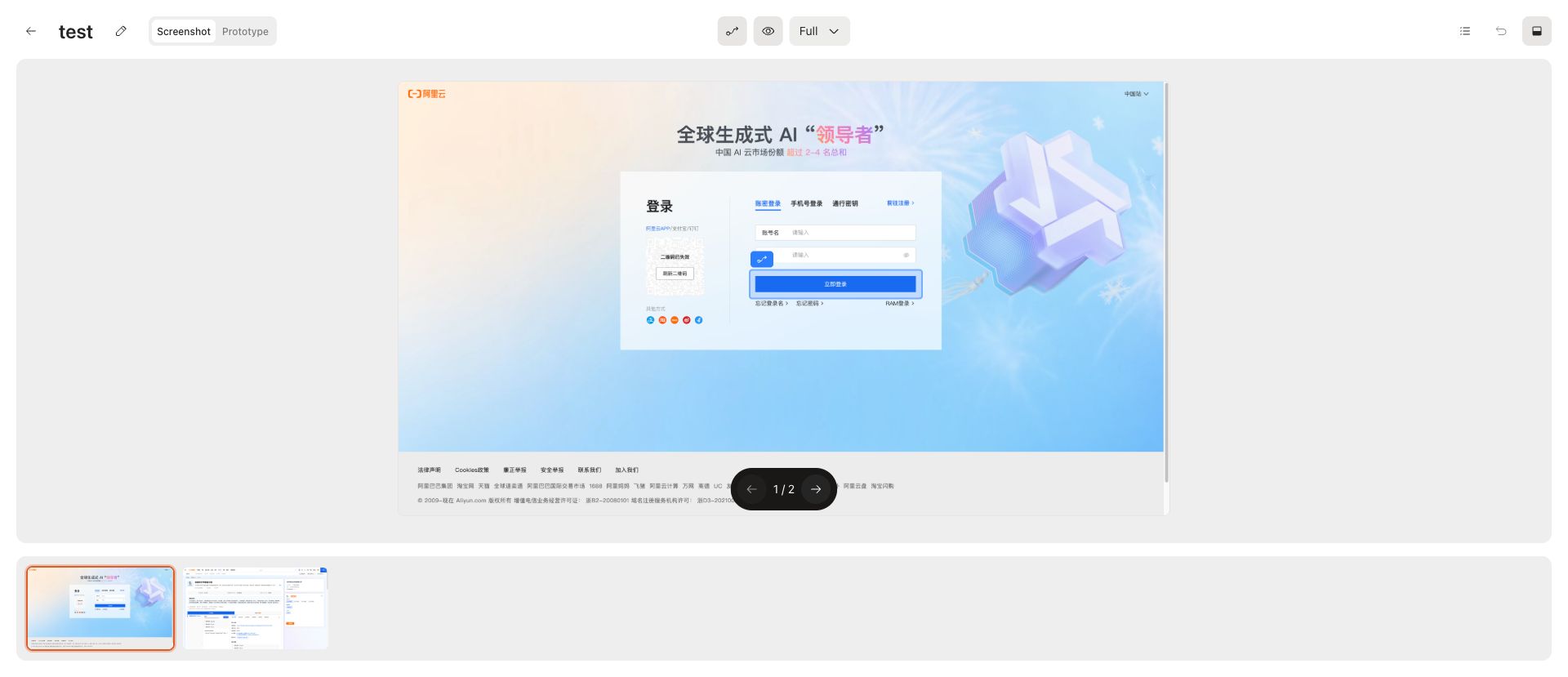
Why map user flows with real screenshots
Flowcharts explain intent, but they hide the details that matter in product review: the copy on a button, the empty state, the extra confirmation step. When a flow is built from the actual screens, nobody has to guess what happens between boxes.
Screenshot flows are also faster to make. You already have the screens in your library, so documenting a journey becomes a matter of choosing and ordering them.
What you get in a Flowingto flow
Each flow lives inside a collection version, next to the screenshots it is made from. The flow viewer is built for review rather than presentation polish.
- Ordered steps with a thumbnail strip for quick navigation
- Hotspots that link one screen to the next
- A Prototype tab for click-through review
- Reorder and remove steps as the journey changes
- Zoom modes for reviewing dense or long screens
- Flows organized inside each app version, so old and new journeys stay comparable
Journeys worth documenting
Teams use screenshot flows wherever a sequence matters more than a single screen.
- Onboarding and sign-up journeys
- Authentication and account recovery
- Checkout, paywall, and upgrade flows
- Feature discovery and empty states
- Competitor teardowns and UX audits
How to map a user flow from screenshots
1
Collect the screens
Upload images, capture pages with the browser extension, import a screen recording, or let the CLI collect them for you.
2
Create a flow
Open a collection version, go to the Flows tab, name the flow, and select the screenshots that belong to the journey.
3
Order and connect
Put the steps in order, add hotspots between screens, and leave comments exactly where the feedback applies.
4
Review together
Share the workspace with product, design, and engineering so everyone reviews the same journey.
Frequently asked questions
- What is a user flow made from screenshots?
- A screenshot user flow is an ordered sequence of real app screens that shows how someone moves through a task, such as signing up, checking out, or upgrading. Unlike an abstract flowchart, every step is the actual interface.
- Can I map competitor user flows?
- Yes. A flow can include any screenshots from the same collection version, so you can document competitor journeys, your own production app, or new design states side by side with the same structure.
- How do I get screenshots into a flow?
- Upload images directly, capture pages with the browser extension, import an MP4 screen recording and keep the frames you need, or create flows from scripts and coding agents with the Flowingto CLI.
- Can reviewers click through a flow like a prototype?
- Yes. Hotspots link one screen to the next, and the Prototype tab lets reviewers click through the flow the way a user would, without building a prototype in a design tool.
- Is Flowingto free?
- Flowingto is free during beta. Paid plans and any usage limits will be announced before anything changes.
Map your first user flow
Collect the screens, connect them with hotspots, and share a flow your team can review in minutes. Free during beta.